How to Use Data Fields in V‑Portal
Learn how to use Data Fields to give the ability to maintain and interact with program variables.
Feature Overview
Data Fields is a smart registry that tracks small, strongly-typed values (int, double, bool, string) across V‑Portal. It lets you read, update, and subscribe to changes in real time. Use this to expose program parameters, such as cycle count, times, and robot speeds or positions, directly in V-Portal.
Creating & Editing Data Fields
You must be of Maintenance Level or higher to modify or create Data Fields. See User Management for more details.
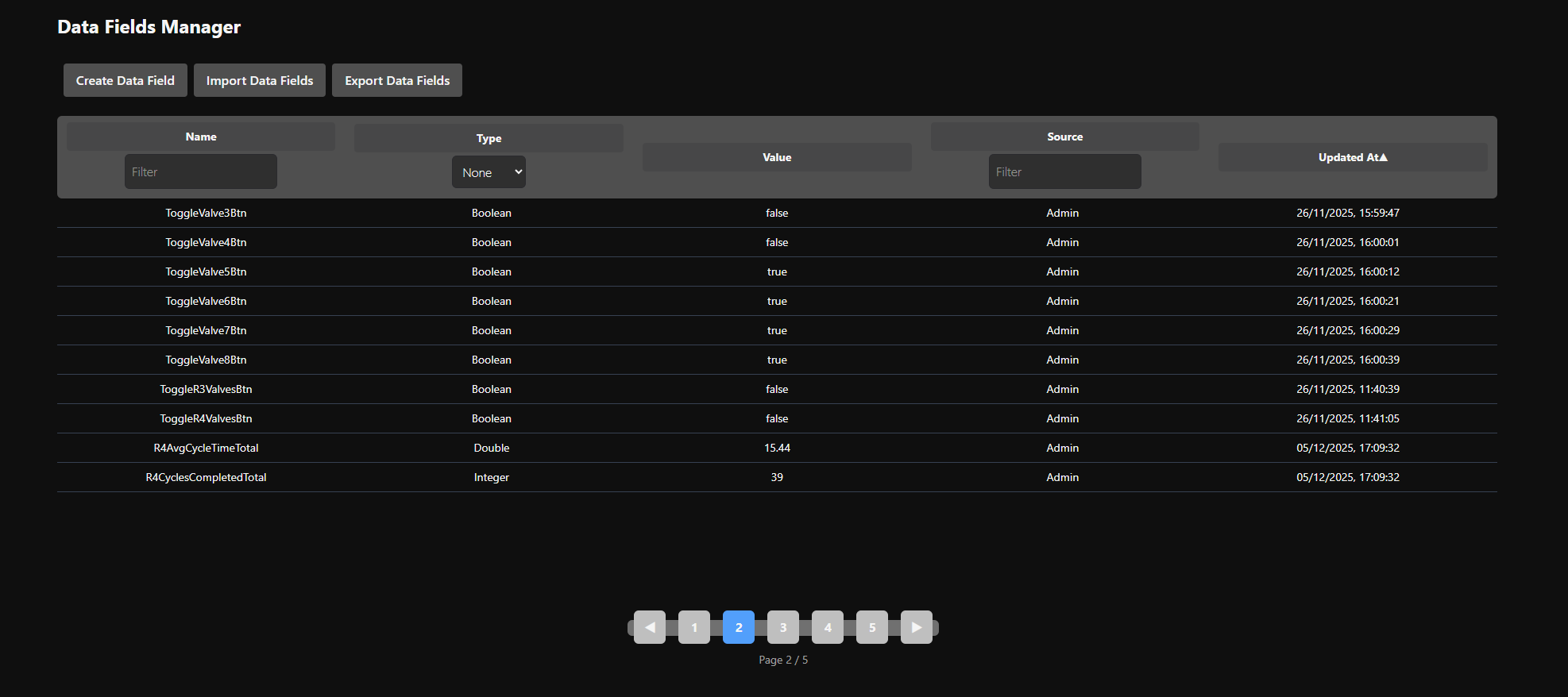
Open V-Portal and navigate to Tools>Data Fields. The table lists available fields with name, type, value, and last update time.
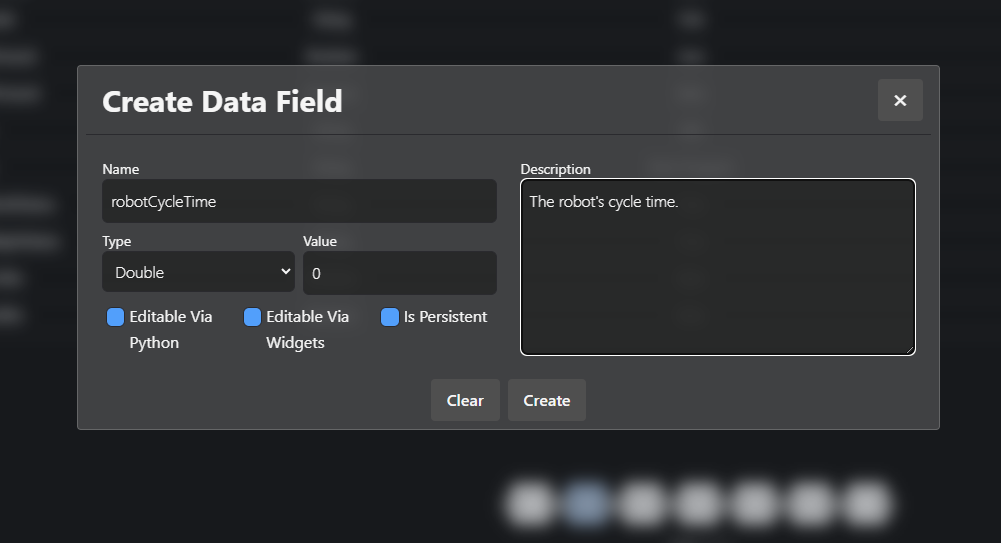
Create a new field. Click “Create Data Field”, enter Name (e.g., robotCycleTime), select Type (int/double/bool/string), set Value, and optionally enable persistent and editability flags and add a description.
Editability & Persistence
Each Data Field defines how it can be modified and how its value is stored:
- Editable via Python
Determines whether the Data Field can be modified through the Python API (set,reset). - Editable via Widgets
Determines whether the Data Field can be modified using UI widgets (e.g. the Editable Data Field widget). - Persistent
Determines whether the Data Field’s value is retained across application restarts.
If disabled, the field resets to its default value on restart.
Viewing & Editing Data Fields
Filters help efficiently locate the desired data field by name, type, source/owner, or date.

Select a Data Field to view details and edit any fields as required

Widgets
There are two widgets provided:
- Data Field Widget
- Editable Data Field Widget
See Widgets for more information.
Python Interface
See Python API for the detailed Python API.
Quick Start
import core.data_fields

field:DataField = core.data_fields.get("field") # -> Throws error if not found

# Sample usage
if field.get() > 0:  # Can get
  pass

# If field is not python modifiable, an error is thrown
field.set(1):  # Field is now 1

field.reset() # field is reset to it's default value

# Sample subscription callback,
def sample_callback(value):
    print(f"Changed to {value}")

# The subscribe method allows a function to be run when the field value changes
sub1 = field.subscribe(sample_callback)
sub2 = field.subscribe(lambda value: print(f"Changed to {value}"))

sub1.unsubscribe()
sub2.unsubscribe()
Best Practices
- Name fields descriptively (e.g.,
event.signal) and provide descriptions. - Use persistence for important values; keep strings ≤1000 chars.
Limitations
- The Frontend updates at a rate of 30Hz (e.g. once every 33 ms).