User Management
What Is User Management in V-Portal
User Management prevents unauthorised access, reduces operational risk, and provides a structured way to manage users as teams grow and change.
Feature Overview
User Management enables administrators to control who can access V-Portal, what actions they are allowed to perform, and how access is maintained throughout a user’s lifecycle. It ensures that the right people have the right level of access at the right time, supporting both operational safety and security compliance.
Who is this for:
- Administrators
- Platform owners
- Security and operations teams
Where This Feature Fits
User Management is a foundational feature of V-Portal, underpinning platform security, access control across all features, and auditability and compliance. Most other capabilities in V‑Portal rely on it to determine who can view specific areas, who can configure settings, and who is allowed to perform sensitive actions. When users and roles are not properly configured, access to the platform is intentionally restricted to protect the system and its data.
Key Concepts & Capabilities
Users
Users
A user represents a person who can log in to V-Portal.
Each user has:
- A unique username
- Optional first name, last name and email
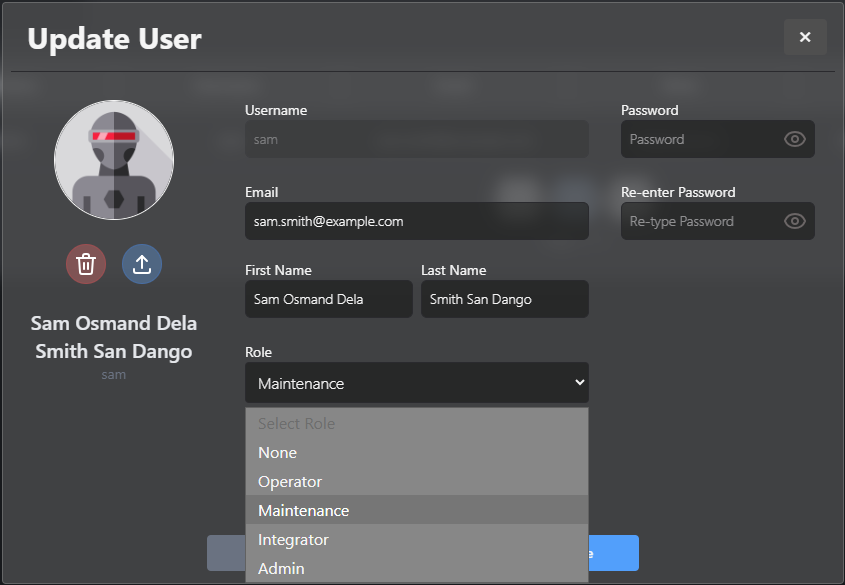
- A role (defines access level)
- An active or inactive status
- A profile (password, profile picture)
👤 A user must always have a role. Users without roles are not allowed.
Role Hierarchy
Roles are hierarchical. Higher roles automatically inherit permissions from lower roles.
Example: An Integrator automatically has all Operator and Maintenance permissions
What to Expect
User Management allows administrators to:
- Create and manage user accounts
- Assign roles with permissions
- Control access to platform features
- Enable or revoke access as users join or leave
- Maintain a clear access structure across teams
Access & Visibility Rules
Who Can Access User Management?
Only users with Maintenance level or higher can access the User Management area.
From there, they can:
- View users at or below their role level
- Create users at or below their role level
- Update user details at or below their role level
- Activate or deactivate users at or below their role level
- Reset passwords for users at or below their role level
🚫 Users can never manage users at a higher role level.
Common Scenarios

Onboarding a New Team Member
An administrator creates a new user and assigns a role matching the user’s responsibilities.
- A temporary password must be generated
- The user is flagged as “password change required”
- A default profile image is assigned
- Credentials are shared securely
🔐 The user cannot access the system until the password is changed.
First Login & Password Reset
On first login:
- User logs in with the temporary password
- System immediately prompts for a new password
- No old password is required
For future password changes:
- Old password is required
- Password strength rules are enforced
💢 Password strength rules apply to every password change.
Changing Responsibilities
A user’s role is updated to reflect a new level of access without creating a new account.
When a user’s role is changed:
- All sessions are invalidated immediately
- User is logged out across devices
- Any further requests are rejected
🔑 This helps to secure data and ensure that authorization rules are preserved.
Offboarding
A user account is deactivated to immediately revoke access while preserving audit history.
When a user is deactivated:
- All sessions are invalidated immediately
- User is logged out across devices
- Any further request is rejected
ℹ️ This preserves audit history while removing access instantly.
User Workflows
This section describes how common tasks are performed.
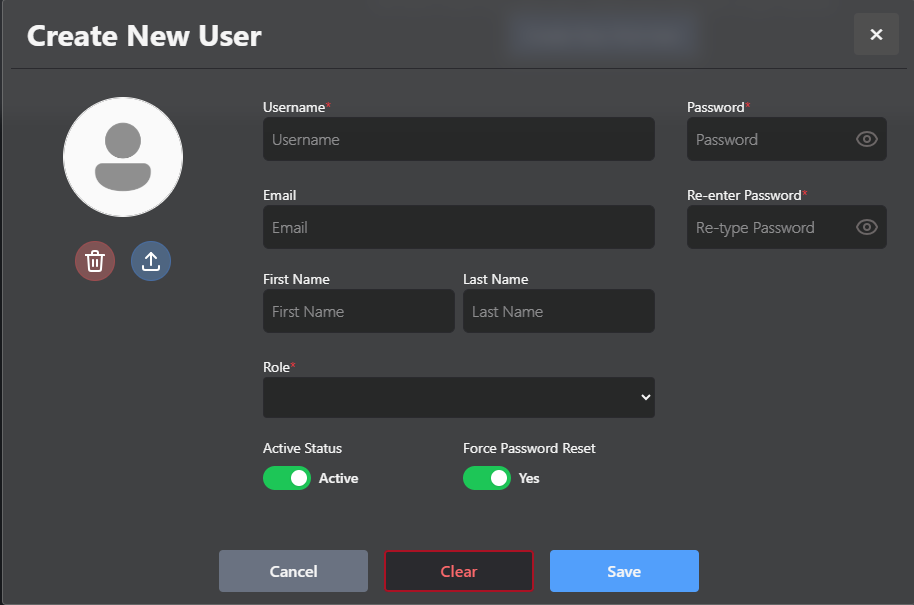
Workflow: New User Creation
Actors: Admin / Maintenance / Integrator
- Open User Management
- Click Create User
- Enter username, first name, last name, email and role
- Force Password Reset is enabled
- Add a temporary password for the user
- Save user
- Share temporary password securely
Outcome: User is created and forced to change password on first login.
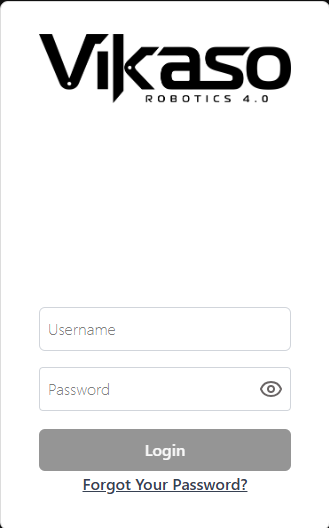
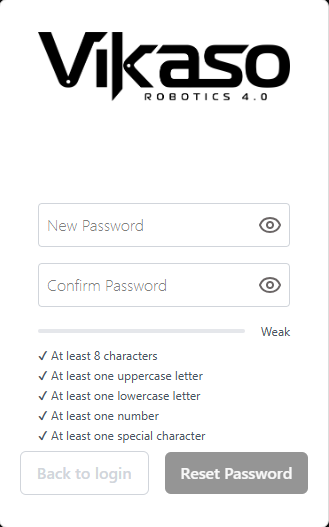
Workflow: User First Login
Actors: Any new user
- Enter username and temporary password
- System detects forced password change
- User sets a new password
- User logs in
Outcome: User gains access to V-Portal based on assigned role
Workflow: Change User Role
Actors: Maintenance / Integrator / Admin
- Select a user below your role level
- Change role
- Save changes
System behaviour:
- User sessions are invalidated
- User is notified
- New permissions apply immediately
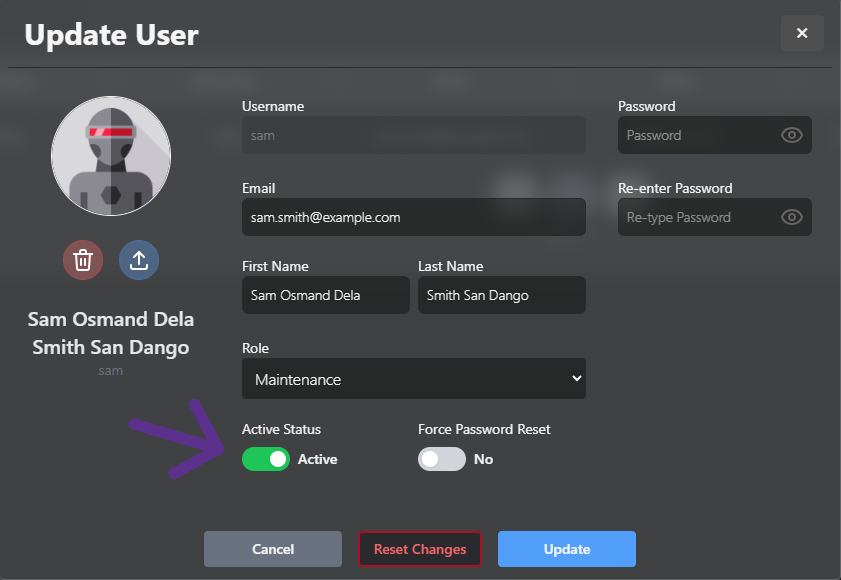
Workflow: Deactivate a User
Actors: Maintenance / Integrator / Admin
- Navigate to User Accounts
- Click Update on the user
- Toggle Deactivate (Active Status)
- Confirm by clicking Update
Outcome: User is logged out instantly and cannot re-enter until reactivated.
Workflow: View User Details
Actors: Maintenance / Integrator / Admin
- Navigate to User Accounts
- Click Info on the user
Outcome: User Information window loads.
Usage Notes
This section highlights important rules, edge cases, and best practices.
Role Hierarchy — Dos/Don’ts
- Manage only users at or below your role
- Never promote someone above your level
- Peers may modify peers at the same role
Example: A Maintenance Lead may update another Maintenance Lead.
Admin Safety — Guardrails
- No self-lockout for Admins
- Admins cannot change role or deactivate other Admins
- Admins may edit profile details (name, email, avatar, password)
- At least one Admin must remain active
Passwords
- Never log passwords
- Support forced resets
- Enforce strength rules consistently
🔒 Password Rules
| Rule | Value |
|---|---|
| Max length | 15 |
| Min length | 8 |
| At least one uppercase letter | Yes |
| At least one lowercase letter | Yes |
| At least one digit | Yes |
| At least one special character | Yes |
Username Constraints
| Constraint | Details |
|---|---|
| Uniqueness | Must be unique |
| Max length | 15 characters |
| Spaces | No spaces allowed |
| Case | All lowercase |
Name Constraints
| Constraint | Details |
|---|---|
| Optionality | Names are optional |
| Max character count (first name) | 15 |
| Max character count (last name) | 15 |
Why We Deactivate (Not Delete) Users
Users are deactivated instead of deleted to:
- Preserve audit trails
- Maintain historical data
- Avoid accidental data loss
Troubleshooting
Access and Permissions Troubleshooting
- If a user cannot access a feature, verify that the correct role is assigned.
- Ensure the user account is active and not disabled.
- Changes to permissions require no restart, but users may need to refresh their session.
❗ Cannot Deactivate Admin
Expected Behaviour: System prevents deactivation of last Admin.
❗ 403 Forbidden on User Update
Possible Causes:
- Acting user role insufficient.
- Attempting to modify same/higher role.
- Promotion rule violation.
❗ Password Reset Not Working
Check:
- Force password change is enabled.
- Old password required (except first login).
- Password policy validation.
❗ Session Invalidation Delay
Confirm:
- Network connectivity.
- User role change.
- User deactivation.
Best Practices
- Assign minimum permissions required for a user to perform their role.
- Review user access regularly especially for temporary and external users.
- Deactivate users who no longer require access instead of leaving account unused.
- Avoid sharing accounts; each user should have an individual login for traceability.
Limitations & Constraints
- User permissions are role-based and cannot be customised at an individual action level.
- System roles are fixed and cannot be altered.
- Historical audit data may still reference users who have been deactivated.
- User deletion will be restricted where audit or compliance requirements apply.